Two ways to build a trip
You can create a trip in CrewAlert two ways: manually — entering trip number, airports, report time, and legs yourself — or from an assignment — when scheduling calls and you tap "Build trip" from the Assignment screen, it pre-fills the details for you.
Either way, once a trip is saved it appears purple on your Schedule calendar and the Duty tab tracks your FDP in real time once you're underway.
Start a new trip
Go to the Schedule tab and tap + Add → Add trip manually. Or from the Duty tab → Trip sub-tab, tap "Build a trip here".
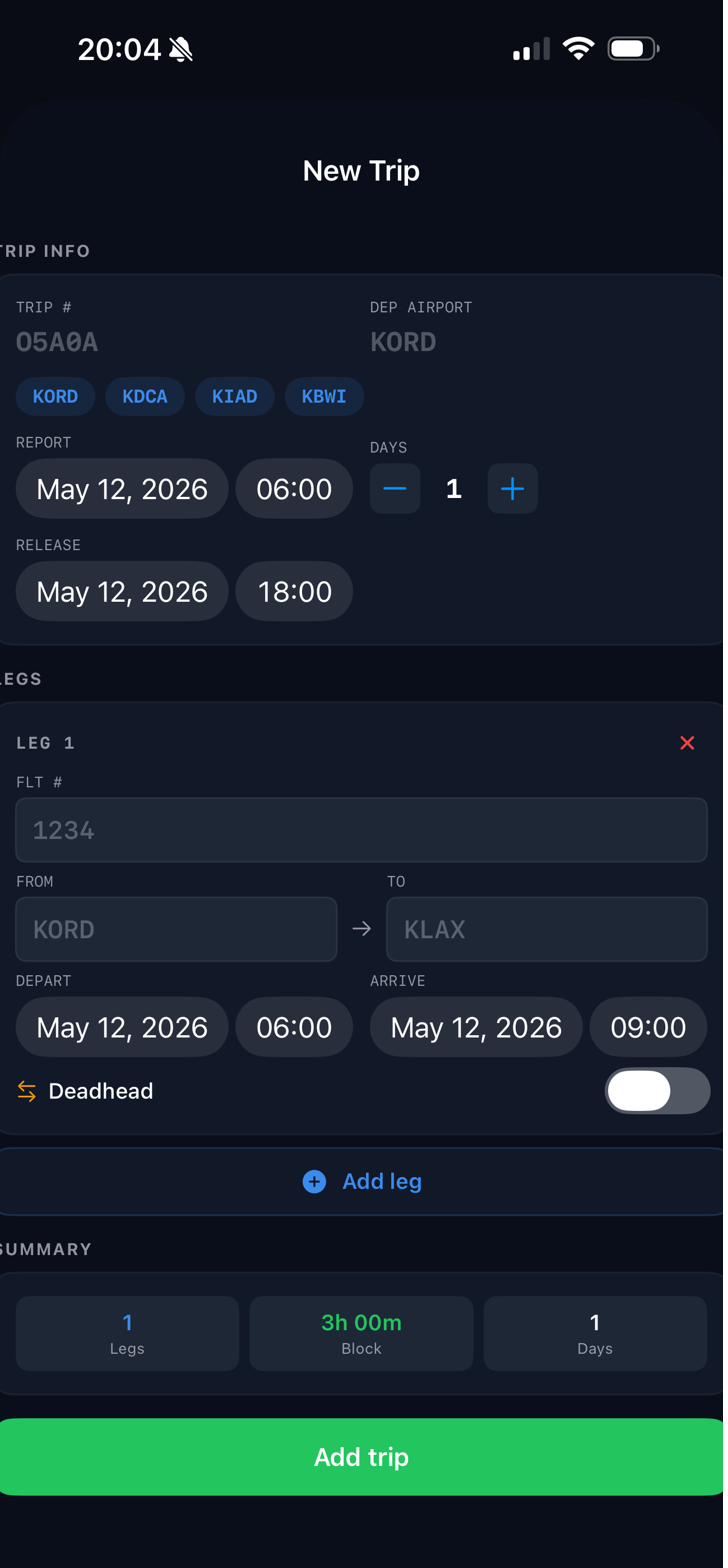
Enter your Trip number, departure airport, report time, and number of days. The release time auto-fills based on the legs you add.
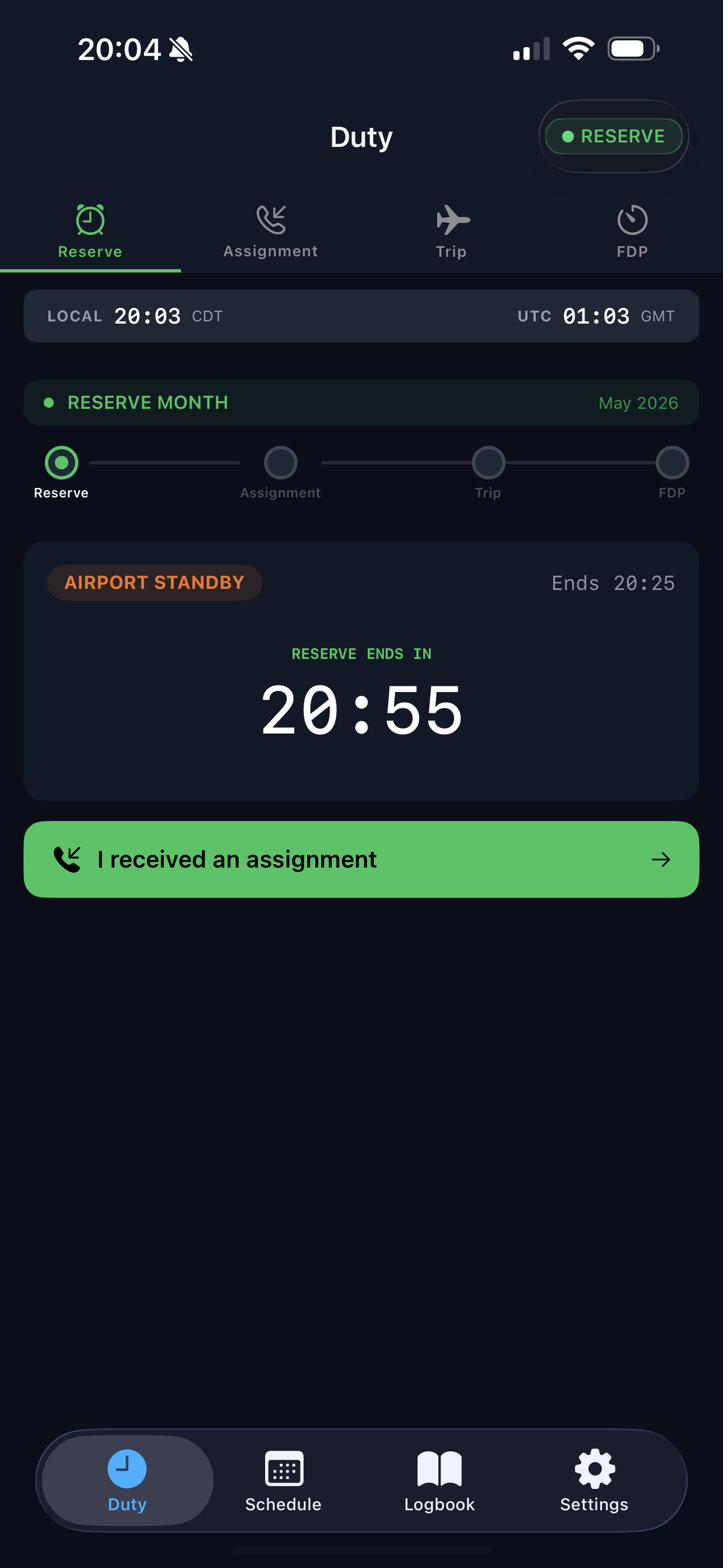
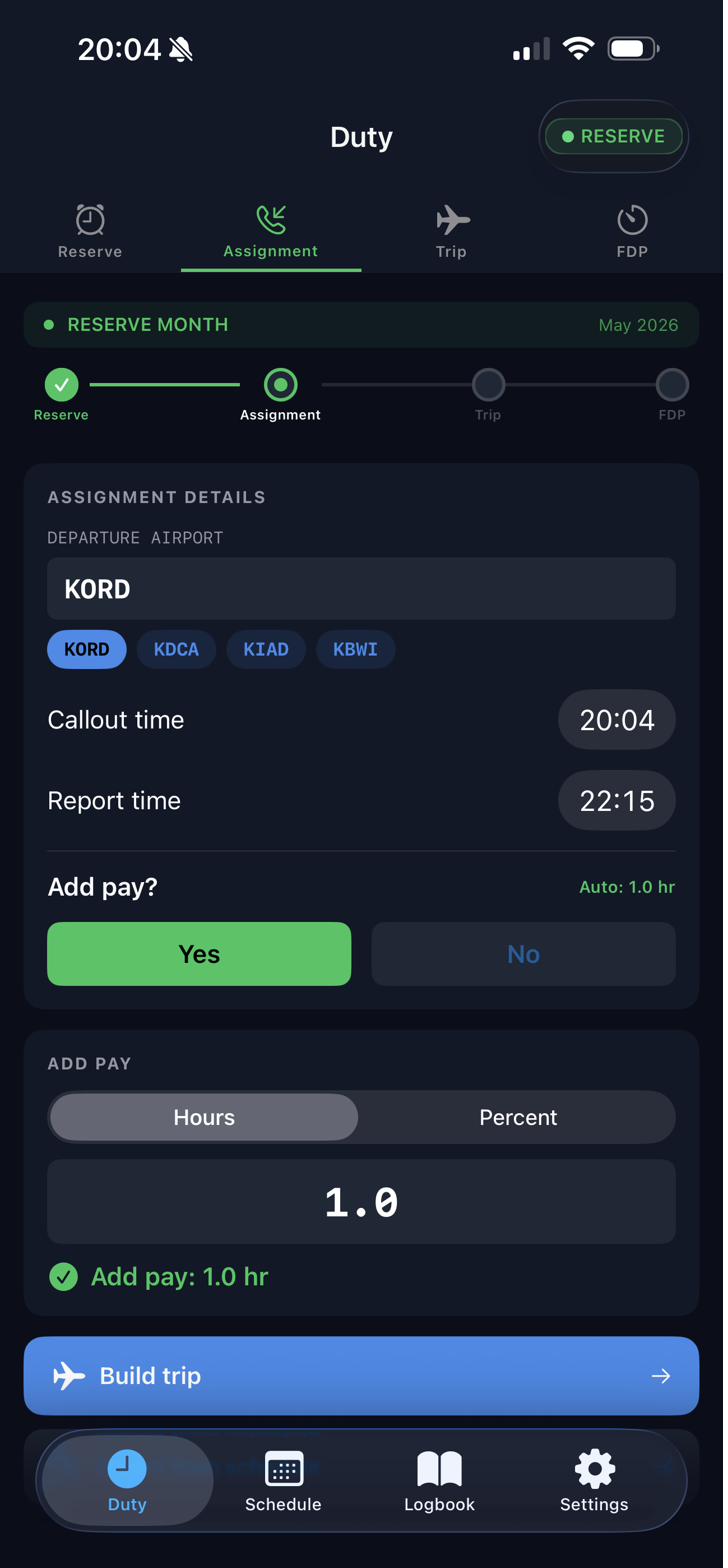
If you came from the Assignment screen after getting called, tap "Build trip" there — it pre-fills the callout and report times so you don't have to re-enter them.
Add legs
Under the LEGS section, enter each leg's flight number, from/to airports, and departure/arrival times. Tap + Add leg for multi-leg days.
Toggle Deadhead for positioning legs — those hours still count toward your FDP but are tracked separately in your logbook summary.
The SUMMARY section at the bottom updates in real time showing total legs, block time, and days as you build.
Increase the day count at the top and add legs for each day of the pairing. Each day's report time and release time is calculated separately for FDP purposes.
FDP tracking during the trip
Once your trip is underway, go to Duty tab → FDP to see your real-time Flight Duty Period tracking. The screen shows elapsed time, remaining time, and your FAR 117 limit for this report time and segment count.
Toggle Augmented crew if you're flying with a 3 or 4 pilot crew — this switches from Table B to Table C limits automatically.
If unforeseen operational circumstances require an extension, toggle FDP Extension (FAR 117.21, max +2:00).
How FDP limits are calculated
Logbook & flight summary
All completed trips feed into the Logbook tab. Tap Snapshot to pull a summary of your flight hours over any date range — total time, PIC, night, actual IMC, sim IMC, and landings.
You can also upload from an existing digital logbook to bring historical hours in so everything is in one spot.
Building trips as you go — rather than in bulk later — keeps your FDP tracking accurate and your logbook totals up to date without extra work.